
How to Open STL, STEP and STP Files Online
Open .stl, .step and .stp files in your browser with ViewSTL. Learn how the formats differ, then try the same part in both formats.
Open a file in your browser
- Open ViewSTL and click Choose a file, or drop your
.stl,.stepor.stpfile onto the viewer. - Drag to rotate. Scroll to zoom, or pinch on a touchscreen.
- Choose Info for dimensions or Section to see inside the model.
Files you choose from your device are processed in the browser. Their names and contents stay on your device. How ViewSTL handles files.
STL, STEP and STP at a glance
- STL
- A surface made of triangles. STL is common in 3D printing and has no built-in unit of length. If a model looks too small or large, check Models → Size & units.
- STEP / STP
- Two extensions for the same CAD exchange format. STEP can describe solids and curved surfaces and carry units. ViewSTL converts that geometry to a display mesh and shows its size in millimetres by default.
Try the same part in both formats
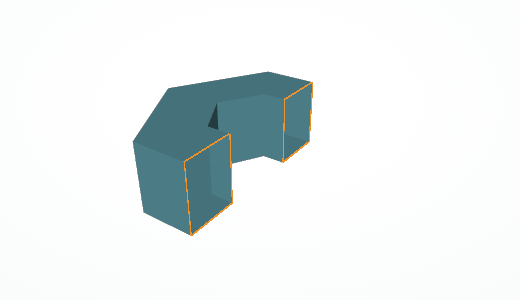
Download a sample below, then drop it into ViewSTL. All three describe the same hexagonal spacer, about 32 × 27.71 × 10 mm. The STEP and STP downloads are identical and contain the spacer’s faceted surfaces.

Which format should you export from CAD?
Choose STEP when someone needs to inspect or exchange a CAD part. In SolidWorks, use File → Save As and choose STEP. In Autodesk Fusion, choose File → Export and select STEP. Keep the original project if you need editable features or design history.
Choose STL when your slicer or other mesh tool expects triangles. Check the imported size before printing because STL leaves units to the software reading it.
Further reading: STL format overview · SolidWorks STEP documentation · Fusion export documentation